Updating Zone Image using Android App

How do you change a Zone Image using the Android App?
I uploaded images in the past, but now want to change them and can't figure out how. Either I've forgotten how to do it or that feature no longer works on Android. (I kinda suspect the latter.) Any help/ideas?
-

Hi, Randy
Open the RainMachine app on your Android phone/tablet and access your RainMachine device.
Go to ZONES and tap on each zone and choose EDIT ZONE
In the next screen you'll get the option to replace/edit the zone image. Take a new picture or choose from the Gallery.
Save the zone and you're done.Hope that helps
Thank you
Julian
RainMachine Support -
Here is the edit zone screen that I see:
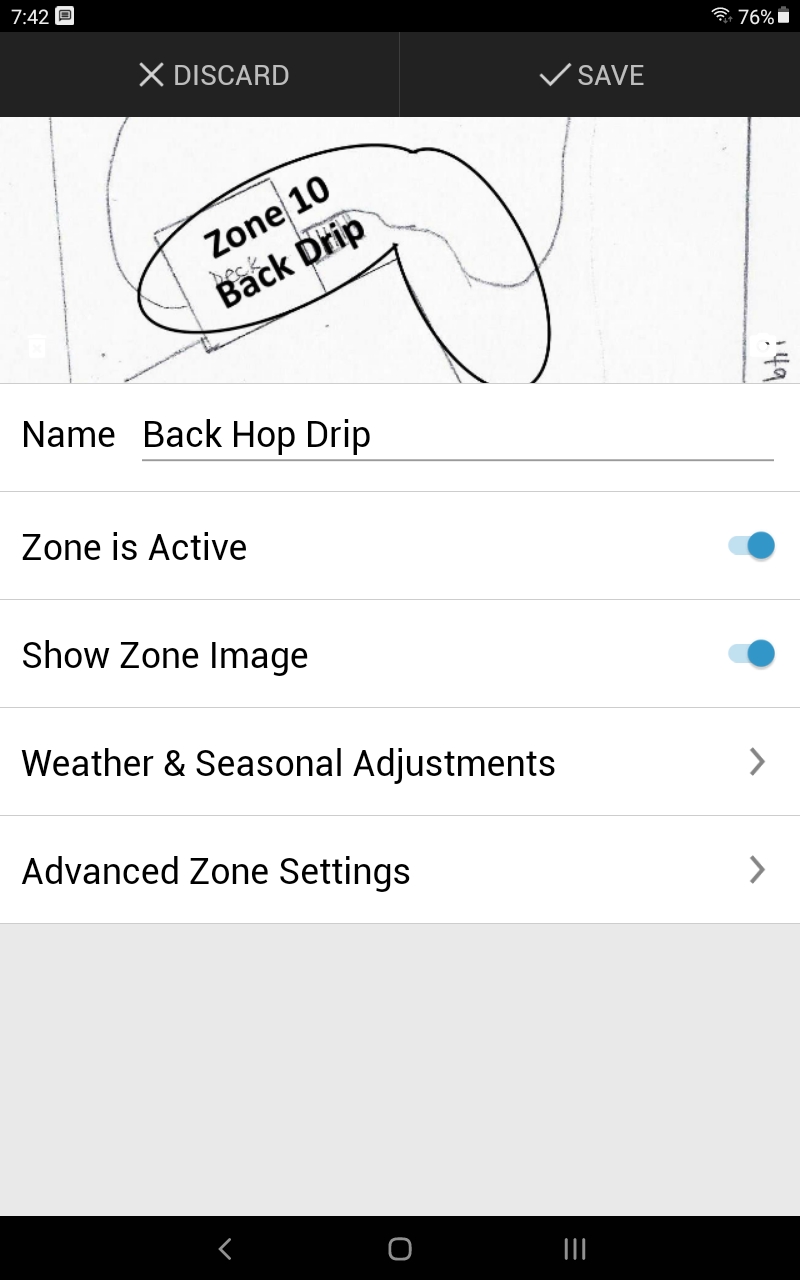
As you can see, allows me to change the zone name, make the zone active/inactive, choose whether to show the image, and change other settings. I see no option for changing the image. Note that tapping, double-tapping, and/or long-pressing the image does nothing.
I am using Android app version 4.7.5. Is there a newer version I should be using? Or, is there some other ZONE EDIT screen I can access somehow?
-
Hi, Randy
Thant's because your zone image has a white background and the edit icon is not visible enough.
It is placed in the right bottom corner on top of the image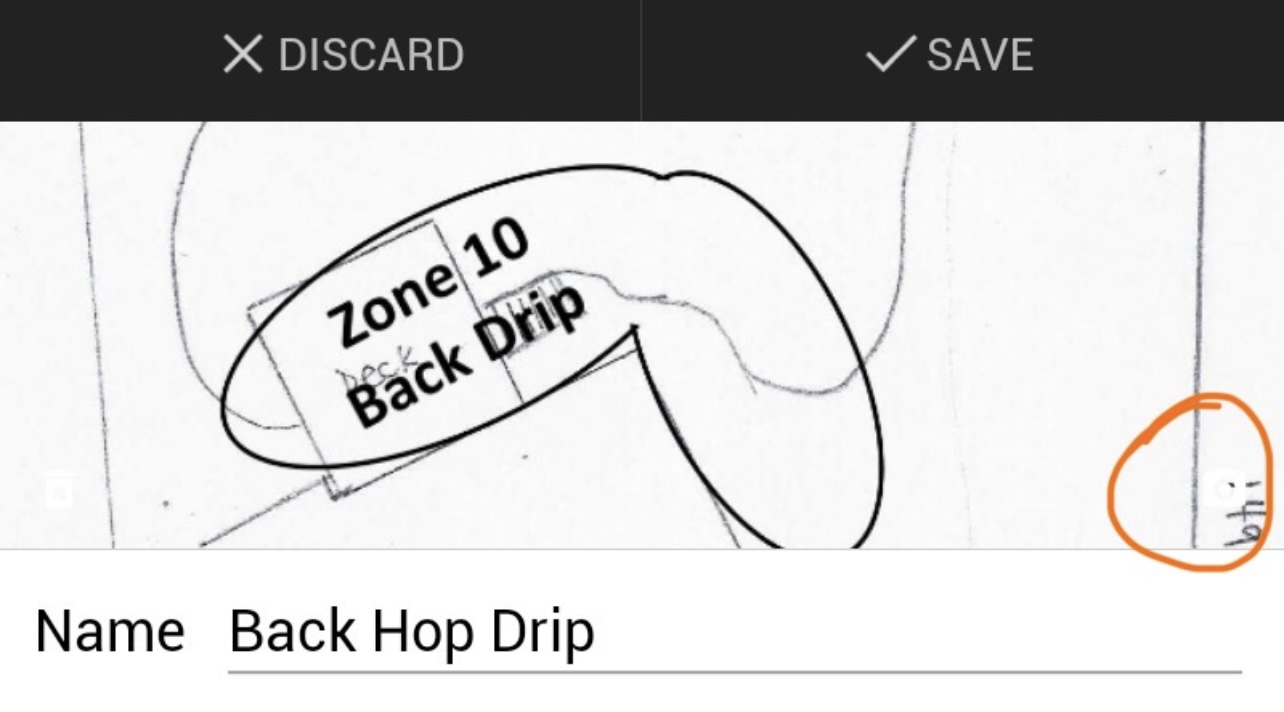
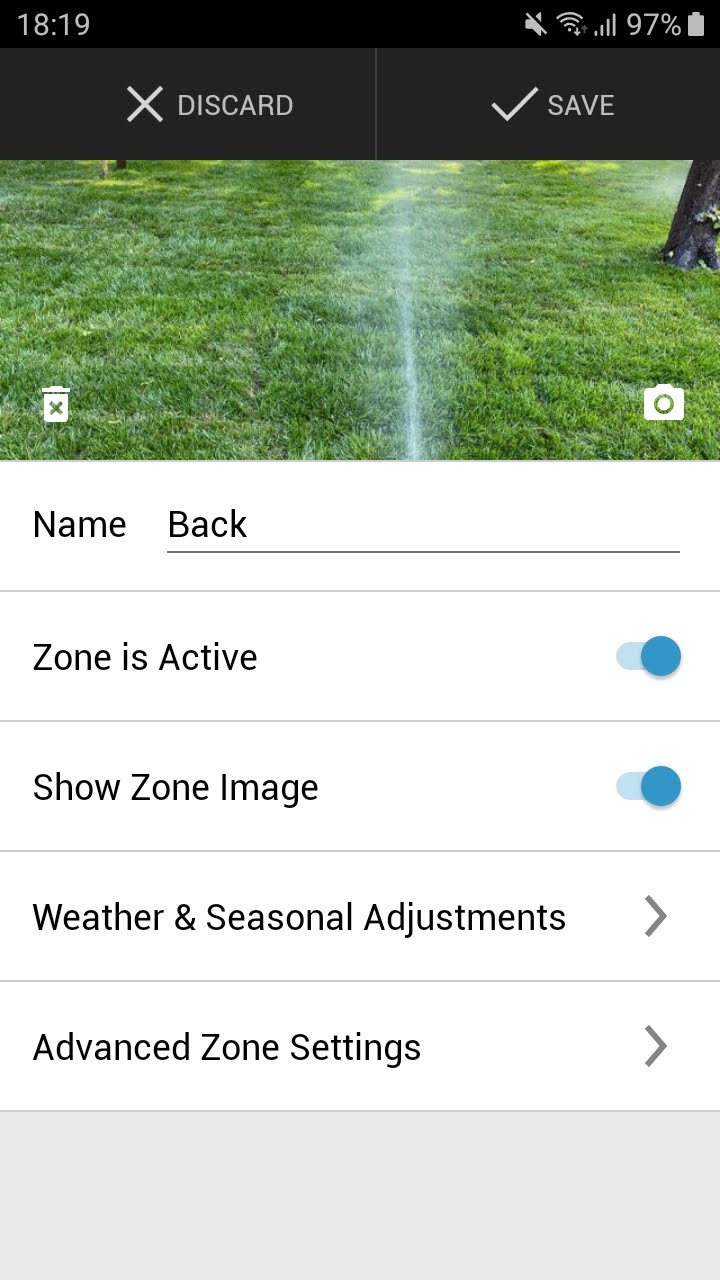
Please tap in that area and the edit zone image menu will popup and you can choose to change the zone image.
Hope that helps
Thank youJulian
RainMachine Support
Please sign in to leave a comment.
Comments
5 comments