Important — If the built-in WUnderground source no longer works
Use the WUnderground V2 community parser instead.
1. Install WUnderground V2
Open the RainMachine app → Settings → Weather → Community tab, install WUnderground V2, and enter your Weather Underground API key.
2. Disable the built-in source
Go back to the weather sources list, open the built-in WUnderground entry and set it to inactive. Leave only WUnderground V2 active — running both feeds the mixer two sets of values for the same day.
3. Station selection
Leave the stationId field empty and the parser chooses for you: it asks Weather Underground for the personal weather stations closest to your RainMachine location and uses the nearest one that is actually reporting data.
To use a different station, type its station ID in the stationId field. There is no drop-down or picker — the ID has to be entered by hand, and on the mobile apps no list of nearby stations is displayed at all. Find the ID first:
- On the Weather Underground Wundermap, click a station near you; its ID is shown on the station page and in the page address (for example
KKSALTON49). - Or open the RainMachine Web App locally, or at my.rainmachine.com (for Premium Services subscribers only) then access → Settings → Weather → Community → WUnderground V2, click Refresh Now and the parser will lists the nearby stations it found with their distance and coordinates after each refresh.
Type the ID exactly as Weather Underground writes it, capital letters included — KKSALTON49 works, kksalton49 does not. Any typo or wrong letter case returns no data and the parser reports an error instead of fetching weather.
4. Save and refresh
Press SAVE, then REFRESH NOW to force an immediate download. Without the refresh, the new settings only take effect at the next scheduled weather update.
What WUnderground V2 actually downloads
Observed data comes from the personal weather station (daily summaries, last 7 days):
- Yesterday: average, minimum and maximum temperature; average, minimum and maximum relative humidity; average dew point; average wind speed; total rainfall; barometric pressure (average of the day's minimum and maximum); maximum solar radiation.
- Today: rainfall so far.
Forecast data comes from Weather Underground's 5-day forecast for your RainMachine's location, not from the station: minimum and maximum temperature, minimum and maximum relative humidity, wind speed, expected precipitation (QPF), probability of precipitation, cloud cover, dew point and weather condition.
Because the forecast follows the device location, make sure your address is correct under
Settings → System Settings → Location.
IMPORTANT: The station ID only affects the observed data.
The instructions below are kept for reference and apply to the legacy parser only.
Weather Underground provides local & long range weather forecasts, weather reports, maps & tropical weather conditions for locations worldwide.
Get WUnderground API Key
Important: As of May 16, 2018, WUnderground Free API keys are no longer provided.
Read the official announcement here.
- Go to Wunderground Weather API website
- If you already have a Wunderground account click the Sign In button from the top-right website menu and enter your account credentials (email address and password).
- If you don't have an account click on the Sign Up for FREE button.
- On the sign-up page use a real email address, choose your password, confirm it by type it again and then choose your Wunderground handle (nickname).
- Agree with the Wunderground Terms of Service
- Click the Sign Up button
- Check your Inbox/Spam folder for email verification message from Wunderground.com. Click on the generated link and your account will be created and verified
- Your API key is not generated and you have to log in using the email and password chosen on 2b) step, or if you already have a Wunderground account use those credentials. - By default the FREE Wunderground Developer account will be selected: Developer Stratus (you can change to paid account later if you choose so) - After successfully logged in you have to complete a number of questions to get the FREE Wunderground API Key
see the image attached for example
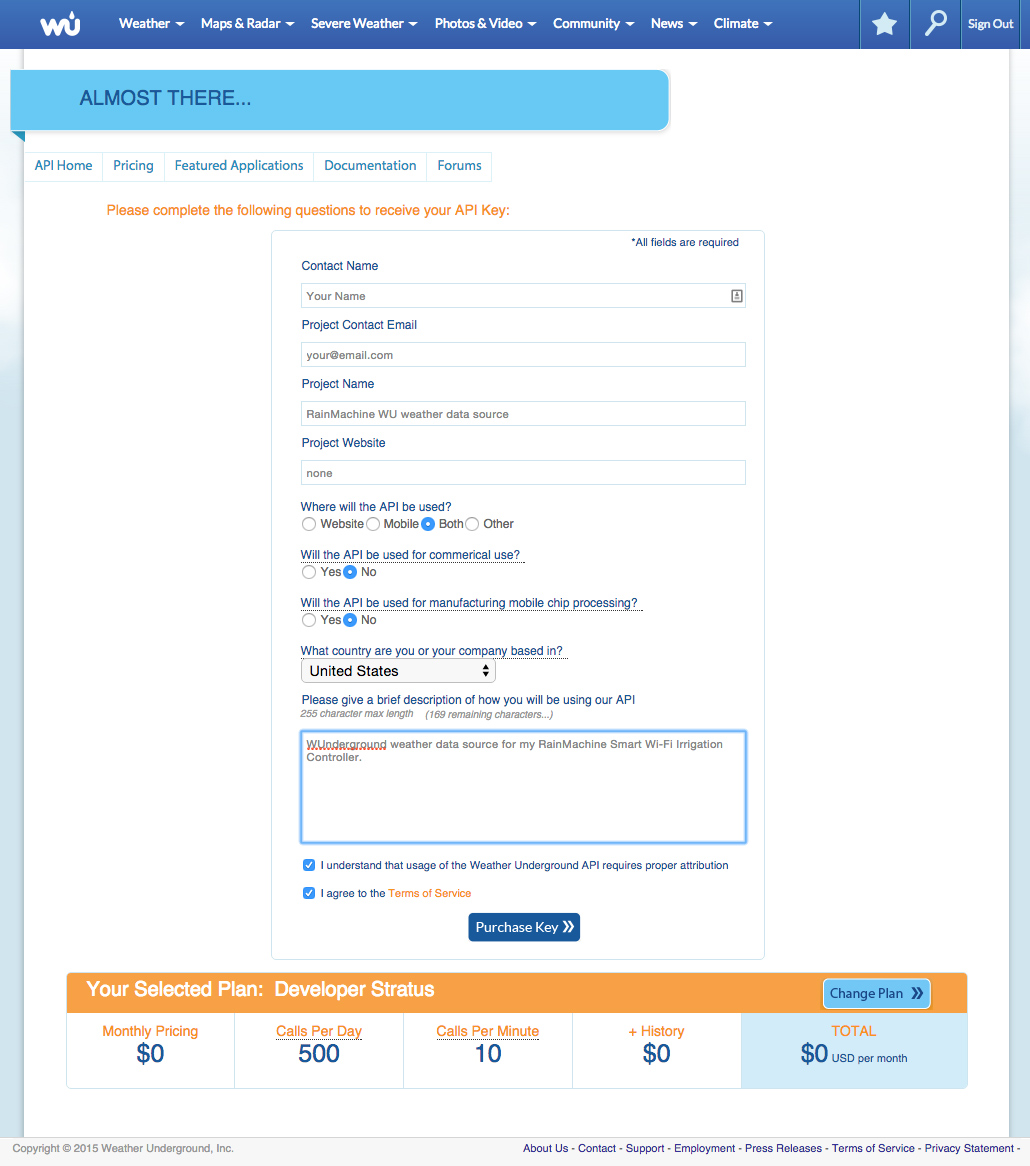
- Click on Purchase Key button when you're done.
- If there are no errors on the questions form the FREE Wunderground API key will be generated.
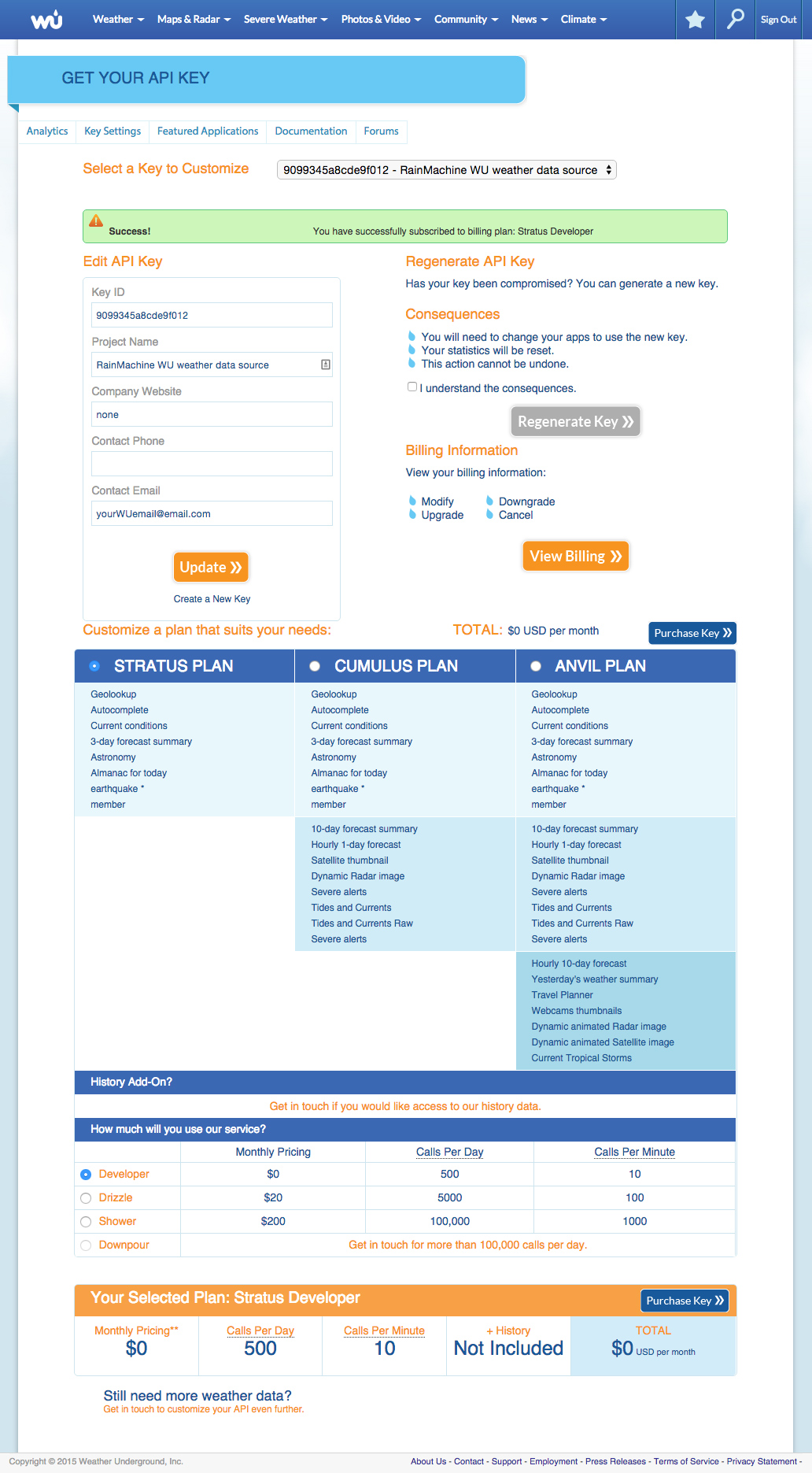
Your Wunderground API key is now active.
How to use WUnderground as RainMachine weather source
1.1 Please enter your API Key obtained from WUnderground.
1.2 Open the RainMachine Web Application (or use the same steps on the mobile iOS and Android RainMachine applications) (https://my.rainmachine.com), log in to your RainMachine device and then go to "Settings" - "Weather".
1.3 Click on "WUnderground" weather data source. Please mark the weather data source "Active" (see fig.1 image screenshot).
1.4 Click "SAVE" and then "REFRESH NOW" buttons to fetch the latest weather data from the WUnderground server.
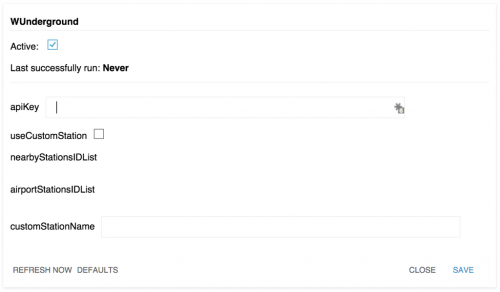
OPTIONAL
1.5 If you want to use one or more specific weather stations, please check "useCustonStation" and enter each station custom name in the "customStationName" input field separated by a comma.1.6 Press "SAVE" button again.
Note: It takes some time to fetch the data from the weather severs. Check the "Status" from the weather data sources list.
IMPORTANT
All weather data fetched from the weather data sources are based on your RainMachine device location.
Please make sure your location address is accurate. To do that go to "Settings" - "System Settings" - "Location"
(using RainMachine mobile iPhone or Android apps, RainMachine local touch interface or RainMachine web application).
Comments
0 comments
Article is closed for comments.